
The Looplet Dashboard
Your Looplet Dashboard shows all of your Loops. You can see the following information about each Loop from the dashboard:
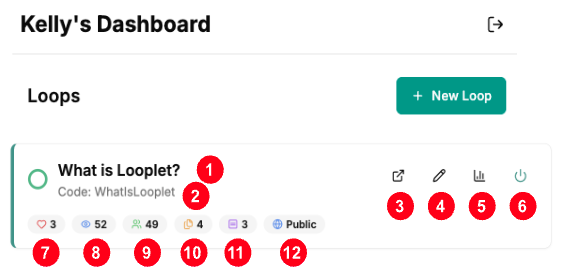
- The Loop name.
- The Loop Code. This is the code people will use to access your Loop. It's also part of the URL.
- Opens the Loop in another tab so you can view and test the Loop - notes, chat, and all.
- Edit the Loop. Click the pencil icon to edit your Loop name, description, materials, and notes.
- View Loop Analytics. View Loop Analytics, including page views, group questions, and chatbot responses
- Activate or deactivate the Loop. Turn the Loop on or off depending on whether you want people to access the Loop.
- Hearts sent to you. Shows how many times people have thanked you by "sending love" from the Loop.
- Loop views. The number of pageviews your Loop has to date.
- Chat sessions. The number of chat sessions your Loop has to date.
- A single session belongs to one unique user and includes all activity until that user closes the Loop (closes the tab, closes the browser window, or switches to a new Loop).
- If the user leaves the Loop page but does not close it, then the same session will resume the next time the user visits the page.
- Number of Files. Number of files in the Loop. This is the number of documents you have uploaded or created.
- Number of Notes. Number of notes in the Loop. This includes active and inactive notes.
- Access Level. Access Control for the Loop. This shows whether the Loop is public or protected.
The Dashboard Sidebar
From the Dashboard Sidebar, you can view and edit account information, materials, and Log out.
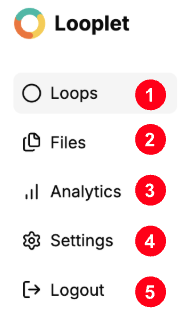
- Loops. View all the Loops you are managing.
- Files. View all the files you have in your Looplet account.
- Analytics. View Loop analytics including page views, group questions, and chatbot responses.
- Settings. Username, email address, notifications, preferences, and security (including changing your password).
- Logout. Log out of your Looplet account.
Manage Files from Your Looplet Dashboard
You can add and delete files from your Looplet Dashboard and add and remove files from your Loops all at once from the Files page.
- Click Files from the Looplet Dashboard sidebar.
- Browse your files.
To add files to your Looplet account
- Upload files from your computer or create a new text document.
- In the pop-up, indicate which Loop the file should belong to. A file can belong to only one Loop.
To delete files from your Looplet account
- Click the Delete file icon to permanently remove any files from your Looplet account.
- You cannot undo this action.
- Deleting files from your Looplet account will remove them from your Loops, too.
- Confirm.
To edit existing files
- Click the Edit file icon in the Actions column.
- Make your edits.
- Click Save Changes.