
Notes: Overview
Notes are a great way to provide your group with all sorts of information, such as:
- Reminders
- Action Items
- Upcoming events
- Quick links
- Summaries
There are three main types of notes:
- AI-Generated Notes that refresh automatically
- AI-Generated Notes that do not refresh automatically
- Hand Written Notes
AI-Generated Notes
AI-Generated Notes are drafted by the Looplet AI assistant from a prompt that you write.
- The prompt tells the assistant what the note should be about.
- The AI assistant then generates the note using information already added to the Loop and/or information you provide in the prompt.
You can edit the content of an AI-Generated Note at any time, so you can tweak the wording and formatting to meet your needs.
Automatic Refresh
AI-Generated Notes can refresh automatically on a set schedule that you choose: daily each morning, weekly on Sunday mornings, or monthly on the 1st of the month. You can also choose to never automatically refresh a note.
When the note is set to refresh automatically, the AI assistant regenerates the note using the prompt you supplied when you set up the note. It will use any information in the Loop or the prompt to create an updated version of the note.
Manual Refresh
You can manually refresh an AI-Generated Note at any time, regardless of the refresh setting, in two ways:
- From the Loop Detail Page, simply click the Regenerate AI Content icon on the bottom right of the note.
- From the Edit Note page, click Generate Content.
Hand Written Notes
Hand Written Notes are notes that you write completely on your own using the Looplet note editor.
- You can adjust the headings, do basic formatting, control colors, add links, and include emojis.
- You can also copy/paste content from somewhere else into the note.
Hand Written Notes are useful when you know exactly what the note should say and how it should be formatted, you have hyperlinks to include, and/or you want to include an image in the note.
Images in Hand Written Notes
You can add an image to a Hand Written Note from the Note Editor. You must have an image URL to add an image to the note, such as https://example.com/image.jpg. Put that URL into the Image URL field.

Notes and Language Translation
People who visit the Loop can choose which langauge they prefer for the Notes and chatbot. When they change the language, all the notes and chatbot responses are translated to that language.
If you anticiapte members of your group will choose a language other than English, be mindful of the wording you use in the Notes. Some words or phrases may not translate well into other languages.
Here are some tips for writing notes that will translate well:
- Use simple, clear language
- Avoid idioms and metaphors
- Use common words and phrases
- Use simple sentence structure
Notes Tips and Tricks
Here are some tips and tricks for using notes.
- Reorder Notes: From the Loop Dashboard, drag the notes to change the order
- Set a Note Start Date: If you want a note to appear in the Loop on a certain future date, set the Note Start Date.
- This is especially useful if you are setting up notes for future events or reminders.
- Set a Note End Date: If you want a note to stop appearing in the Loop on a certain future date, set the Note End Date.
- This is especially useful for notes about one-off events or reminders.
- Change the Colors: In the Note editor, change the background color, text color, and link color of the notes.
- You may want to color code your Notes, for example all notes about schedules are one color, notes about events are another color, and critical updates are a third color.
Example Notes
When thinking about which notes to create for your group, consider about the following:
- What types of information does the Loop contain?
- What are the most common types of questions you received from the group before using Looplet?
- What types of information might your group want quick access to?
Below are some common Note types and how to create them, including sample prompts. Click the examples to view the notes and how to create them.
Welcome Notes
Welcome Notes are nice to include at the top of a Loop to welcome your group to the Loop and orient them to all that your Loop has to offer. Welcome notes can be AI-Generated or Hand Written.
Example 1: 6th grade class Loop, AI-Generated, no refresh
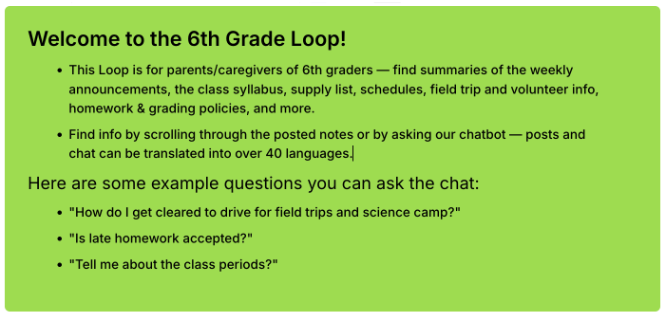
- Prompt: Create a welcome note that welcomes parents and caregivers to the 6th Grade Loop. Briefly describe the type of info they can find here, how to find info (scrolling through the notes or asking questions in the chatbot. can choose from over 40 languages to translate the notes and chat into), and suggest a few questions they can ask in the chat that will be answered in this Loop.
- Refresh Frequency: Never
- End Date: set to two months after school starts, giving parents and caregivers several weeks to get used to the Loop.
- The AI assistant generated the note using info in the prompt itself (about how to use the Loop) and in the content added to the Loop, including a syllabus, a welcome email, and school events.
Example 2: Sport team Loop, AI-Generated, no refresh
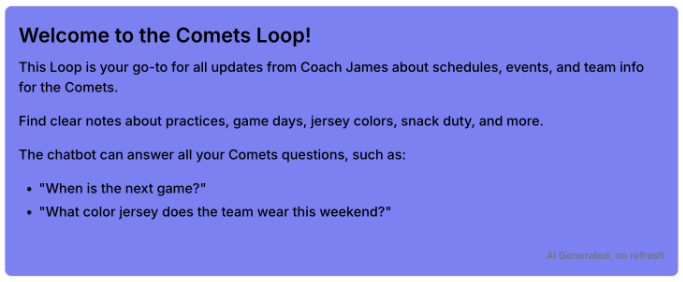
- Prompt: Welcome parents to the Comets Loop. Summarize that they can see notes about schedules and events summarized from Coach James's communications, and they can ask the chatbot questions about the team (practice and game schedules, jersey color and snack duty for games, etc). Suggest a couple questions people can ask that the Loop can answer.
- Refresh Frequency: Never
- End Date: set to two weeks after the first game, so people can get used to the Loop.
- The AI assistant generated the note using mostly info in the prompt itself (about how to use the Loop) and some info added to the Loop.
Quick Links Notes
A Quick Links Note contains a list of links to useful website videos, and documents. These notes can be AI-Generated or Hand Written.
Example 1: Rowing club Loop, Hand Written
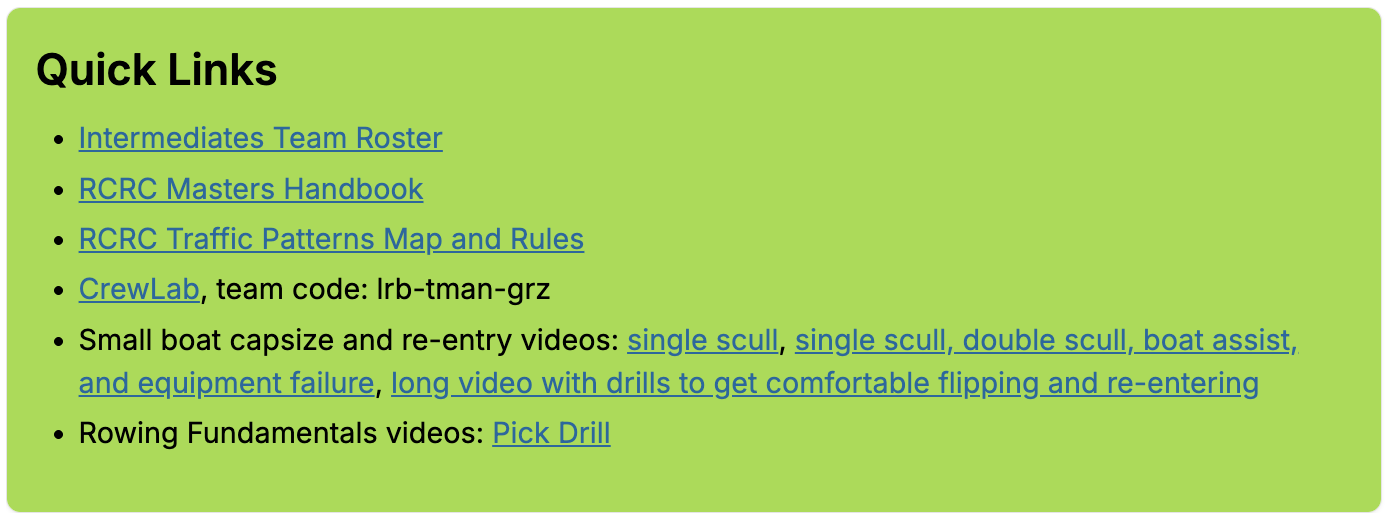
- Hyperlinks go directly to useful content.
- Video links are organized by type.
- The Loop chatbot can also provide these links and descriptions in the chat.
Example 2: School Loop, Hand Written
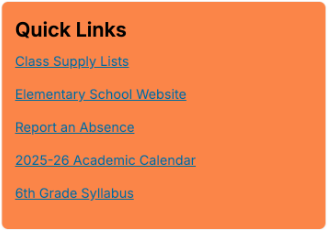
- Each link was added as a hyperlink.
One-Off Event or Reminder Notes
A One-Off Note contains info for a specific, one-time event or reminder, such as an action item, field trip, concert, game, or meeting.
Example 1: Upcoming training session, AI-Generated, no refresh
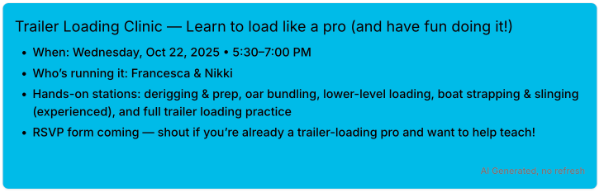
- Prompt: Summarize the boat loading training in a fun way
- Refresh Frequency: Never
- End Date: October 23, so this note will no longer display in the Loop after the training.
Example 2: Field trip, AI-Generated, no refresh
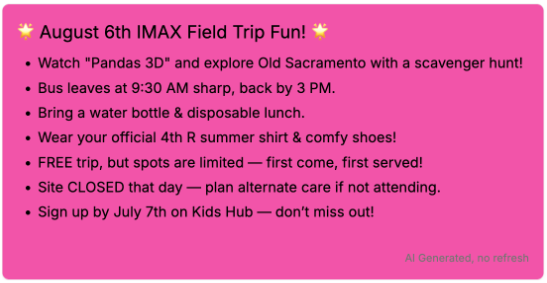
- Prompt: Summarize the August IMAX field trip info in a fun, concise way!
- Refresh Frequency: Never
- End Date: August 7th, so this note will no longer display in the Loop after the field trip.
Example 3: Action items, AI-Generated, no refresh
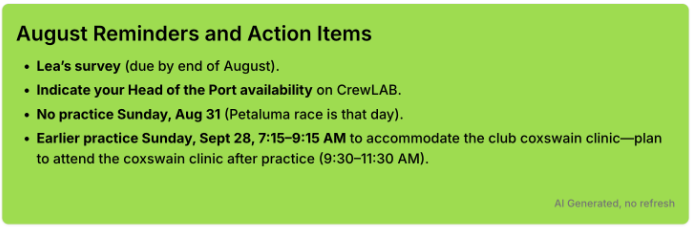
- Prompt: Create a short note reminding people to fill out Lea's August survey. Also include info of other action items and events from Lea's August update
- Refresh Frequency: Never
Automatic Refresh Notes
Automatic Refresh Notes update on a regular schedule and are great for daily, weekly, or monthly schedules and events, summaries of recurring meetings or newsletters, and daily, weekly, or monthly checklists.
Example 1: Monthly summary, AI-Generated, monthly refresh
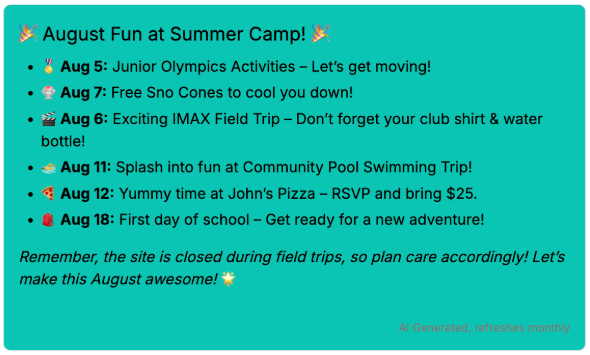
- Prompt: Summarize upcoming events for this month in a fun way!
- Refresh Frequency: Monthly (on the 1st)
- The AI assistant used information from the summer newsletter to create this list of special events and field trips during summer camp.
- Once the school year starts, the prompt can stay the same, and the note will list school year events for the month.
Example 2: Upcoming events, AI-Generated, monthly refresh
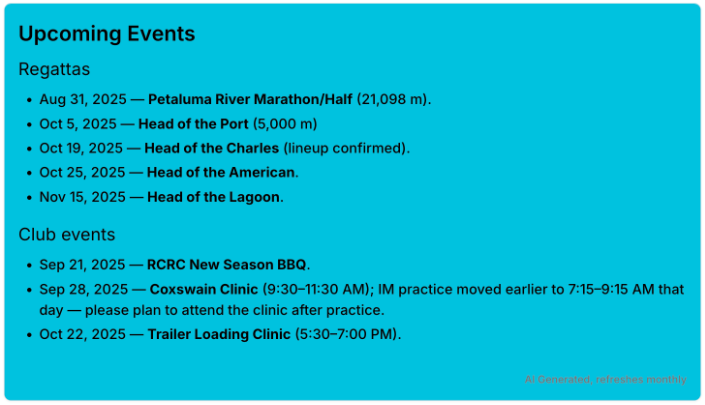
- Prompt: Summarize the upcoming rowing regatta dates and club events concisely
- Refresh Frequency: Monthly (on the 1st)
- The AI assistant used information from the monthly email and other updates to create this note.
Example 3: Weekly workouts, AI-Generated, weekly refresh
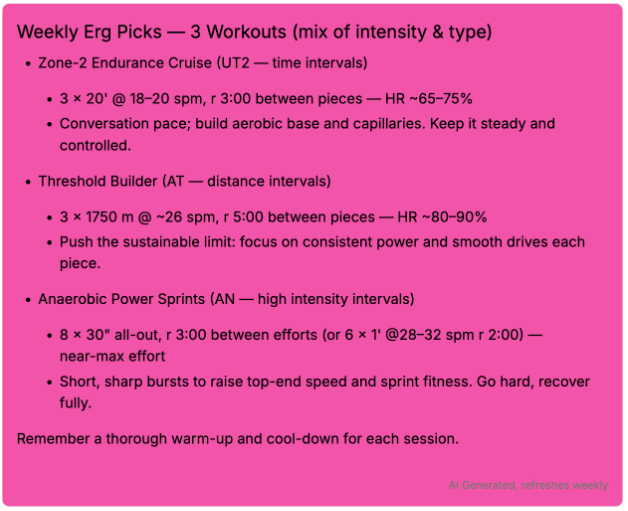
- Prompt: Using the Erg Workout Ideas doc and the RCRC Intermediates Training Zones xls file, list 3 workouts that are a good mix of intensity (low, mid, high, AN, AT, TR1, TR2) and workout type (time intervals, distance intervals) in a motivating way.
- Refresh Frequency: Weekly (on Sunday morning)
- The AI assistant used a spreadsheet of dozens of rowing machine workouts to create this note.
Static Notes
Static Notes show information that doesn't change often.
Example 1: Practice schedule, AI-Generated, no refresh
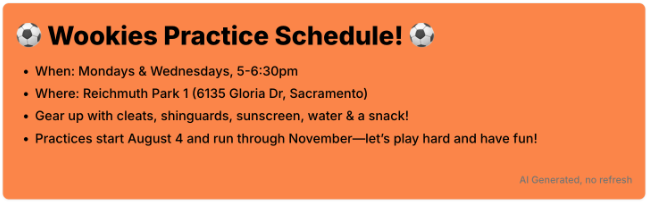
- Prompt: Summarize the practice schedule and location in a fun way.
- Refresh Frequency: Never
- The AI assistant used the class syllabus in the Loop content to create this note.
Example 2: Bell schedule, AI-Generated, no refresh
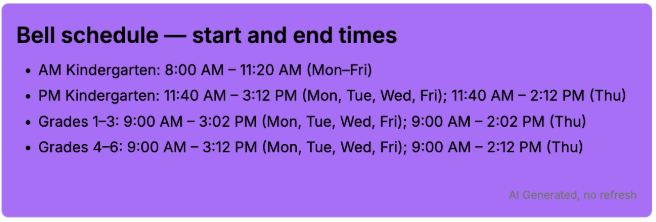
- Prompt: Summarize the bell schedule in a clear, concise way. Include only the school start and end times.
- Refresh Frequency: Never
- The AI assistant used the Bell Schedule PDF in the Loop content to create this note.